Use Public Wi-Fi with Connect
Supported versions
Assisted public Wi-Fi login is available in versions 3.10.0 and above on Windows. For other platforms, see Which operating systems can I log in to public Wi-Fi on?
This guide uses "public Wi-Fi" when referring to captive portals. You may have also seen them called captive networks or captive Wi-Fi networks. See our Captive Portal explainer for more information.
When public Wi-Fi blocks your Internet traffic, you have two options:
- Either log in to the network, following the steps below;
- Or switch to a different network that does not block your Internet traffic.
1. Select a public Wi-Fi network
From the list of Wi-Fi networks on your device, select the public Wi-Fi you want to use.
2. Wait for public Wi-Fi to be detected
Wait briefly for Connect to detect the public Wi-Fi network. Once Connect detects you are using public Wi-Fi, it will open a browser for you to log in to the network.
The URL at the top of the browser will vary depending on which public Wi-Fi you join.
What Connect does in the background
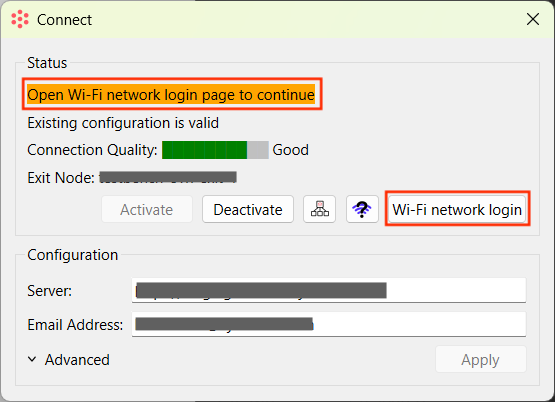
Connect will open in the background and display a message such as Open Wi-Fi network login page; this is normal and expected while Connect is waiting for you to log in to public Wi-Fi.
Connect also provides a Wi-Fi network login button to reopen the login page if it doesn't load or you close it by accident.
3. Log in to public Wi-Fi
Complete the public Wi-Fi login in the browser opened by Connect. Follow the login page instructions as you would on any other device: accept the terms, sign in, or pay.
After login, the browser may briefly display either Connect's success page or a public Wi-Fi corporate landing page provided by the business you're using. This will close quickly and you can open a new browser or begin working, with your Internet connection secured by Connect.
Check your connection
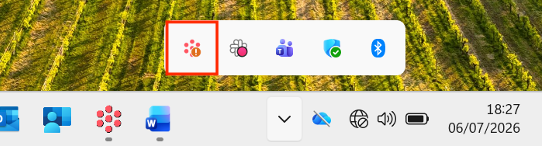
If you want to check that Connect is running and that you have a stable, working Internet connection, you can open Connect to view its status.
FAQs
What does the Wi-Fi network login button do?
Connect's Wi-Fi network login button can be used to open the public Wi-Fi login page if it does not open or is closed by accident. You can find it by opening Connect.
This button is available whenever your Internet access is blocked by public Wi-Fi, so you can use it at any time to open the login page in a browser.
What if my login page doesn’t appear or I close it?
If the login page does not open, or you close it by accident, use Connect's Wi-Fi network login button to open the login page again.
What if my login page doesn't load?
If the public Wi-Fi login page doesn’t load, check that the network is still available using your device's list of networks. If it is still available, you can use Connect's Wi-Fi network login button to reload the login page.
Why did I get a "Network changed" notification?
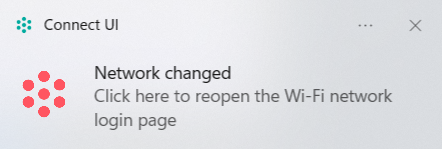
When you select a network, Connect starts communicating with it immediately to establish a secure connection. If you change your network selection without logging into the public Wi-Fi network, Connect shows a Network changed notification in the bottom right corner of your screen.
Click the notification, or the Wi-Fi network login button, to reload the login page for the new network. This is necessary to ensure Connect's secure routing can remain in place throughout the public Wi-Fi login process to protect your Internet traffic.
Can I change networks while working?
Yes, you can move to another network without deactivating Connect or restarting your device.
If the new network is known and your device is set up to connect to it automatically, Connect will reestablish your connectivity without further action.
Otherwise, you will need to select a network from the list of available networks on your device. If the new network is public Wi-Fi not known by your device, you will need to follow the steps above to get back online.
Which operating systems can I log in to public Wi-Fi on?
The assisted login described above is currently available on Windows only. On other platforms, such as Linux, log in to public Wi-Fi manually:
- Deactivate (stop) Connect.
- Log in to the network as you normally would. Your device will usually show its own sign-in page or you can open a web page in a browser to bring it up.
- Once you have Internet access, activate Connect again.
What if I still cannot get online?
Some public Wi-Fi networks do not behave as expected, and this can happen even on a device that is not running Connect. If you are unable to log in:
- Try the Wi-Fi network login button to reopen the login page.
- Try a different login method (for example, Facebook, Google, Apple), if the public Wi-Fi provides more than one.
- See whether the public Wi-Fi behaves any differently without Connect; for example, on a personal device not running Connect.
- If there is an issue with the public Wi-Fi, switch to a different network.
Find out more about why this happens in our when a captive portal misbehaves explainer.
Why did it take longer than usual to load the Wi-Fi login page?
The signal strength of the network you're using affects the time it takes for Connect to detect public Wi-Fi and affects how long Internet pages, including the Wi-Fi log in page, take to load.
If this takes longer than expected, please report this to CyberHive Support. You can also try using the Wi-Fi network login button to see if reloading the login page helps.
Why does Connect still say there may be a problem with my Internet connection?
Connect can report "There may be a problem with your Internet connection" for up to a minute after you have logged into public Wi-Fi or changed networks. This time allows for the system to fully settle, with secure "handshakes" taking place to establish full connectivity.
It is likely that you have a working, secure Internet connection during this brief period, so continue as usual; you can open Connect at any time to confirm that it is active and has a stable connection.
Why do I need to log in to the public Wi-Fi again?
Public Wi-Fi sessions can time out, with paid sessions typically having a shorter time-out period. Sessions can time out while you are actively using public Wi-Fi, or when you rejoin the network after a period away from it.
This is outside of Connect's control. If your session times out, you will need to follow the steps above to get back online.
What if I had to stop Connect to log in to the public Wi-Fi?
If you need to stop Connect to log in to public Wi-Fi on a Windows device, please report this to CyberHive Support.